Workflow and measurement
Automated appointment reminders: a setup workflow without duplicate sends
Set up reminders that reflect booking lead time, upcoming changes, staffed hours, and the customer's next action.
Our old reminder still went out after a client rescheduled. What should we check?
Reminders were probably queued as fixed jobs that nothing canceled. Check these four things, in order:
- Source of truth: was the move made in the system that generates reminders, or in a copy (a second calendar, a spreadsheet)?
- Job cancellation: does moving or canceling a booking delete its pending reminders and create new ones?
- Send-time check: does the sender re-read the booking right before sending and skip it if the time, status or phone changed?
- Duplicates: is the same booking imported twice, for example from two calendars the tool reads?
Test it: book a fake visit for Thursday, let the confirmation go, move it to Friday, and confirm that no Thursday reminder arrives and exactly one Friday reminder is scheduled.
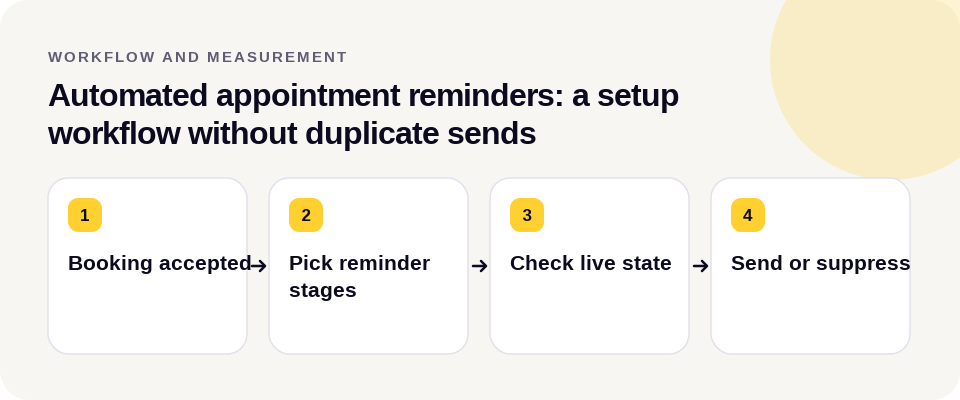
An appointment reminder workflow should start with a real booking and end with a useful action. The booking confirmation gives the customer an immediate receipt; later messages help them attend or tell you early that they cannot. Choose timings based on what customers can do when the alert arrives and what the team can do with their response. A fixed pair of reminders is simple to launch but can behave badly when someone books only an hour in advance, moves a visit, or replies when staff are away.
Give each stage one job
A booking confirmation answers “Did my booking go through?” Send it after the appointment has a definite date and time. Include the business name, local time and venue or joining method. An early check-in answers “Can you still make it?” Send it early enough for your team to recover a cancellation or change staffing plans. A final reminder answers “Where do I go and what do I do next?” For a business with a complicated entrance, that message might simply repeat the address plus an entrance cue.
Do not start with three channels and six stages. Start with at most an acknowledgement and a useful advance reminder, then test whether a final reminder solves a particular problem. A bakery consultation and an on-site inspection may use the same scheduling system but need different lead times. A visit requiring materials or travel has a reason for a longer lead. A small walk-in shop with almost all bookings made that morning does not need a scheduled alert for yesterday.
Handle compressed bookings on purpose
Imagine a customer books at 2:00 PM for 3:00 PM. Sending the booking receipt, a missed 24-hour reminder, and the arrival message within one minute is not a nice workflow. Send the receipt, include the key arrival instruction, and suppress the early reminder because the planned stage was already in the past when the booking was made. If you send a same-day message at all, make it conditional on enough time having passed since the receipt and the information being materially useful. The minimum spacing is your policy, not a universal timing rule.
Now consider a high-effort consultation booked two weeks ahead. Send the receipt, an advance reminder with a readable answer or quick reschedule route, and only then decide if a day-of reminder is in scope. Some recipients confirm quickly; consider switching the day-of message to directions only or suppressing it for confirmed bookings if your team sees no need for an additional touch. Do not write “please reply to confirm” on a channel where no one reads replies.
Make the live booking authoritative
A reminder queue is not the schedule. At send time, compare the queued appointment identifier, booking version, intended channel and current eligibility against the actual appointment. A moved appointment invalidates the queued message for the old time. A cancellation invalidates its attendance reminders. An opt-out or invalid phone number blocks the text, even if the customer opted in when first booked. A unique key such as booking occurrence plus version plus stage plus channel helps prevent an identical stage from being sent twice after a worker restart.
Do not send a different message if you cannot establish whether the previous one went out. Record your own send reference and, where available, the provider's accepted message identifier. Ambiguous network failures should trigger reconciliation instead of blind replays. If the provider definitely rejected a submission, check that the appointment is still future and eligible before retrying. Never “catch up” old reminders after a service outage when their time has passed.
Match customer hours and staffing
Apply quiet periods based on the recipient's relevant local time if you know it. If a desired reminder falls outside allowed hours, recalculate the send earlier or skip the stage according to a documented rule. Moving a reminder later across the appointment time is not a useful default. If someone replies after the desk closes, an actual automated confirmation can acknowledge the action, but a message promising “we’ll call immediately” creates work your team cannot do.
Give the owner a state list they can understand: scheduled, suppressed, handed to provider, delivered where known, and failed or uncertain. Put the suppression reason alongside the record, for example “moved visit,” “too close to last message,” or “no SMS permission.” This gives staff a reliable answer when a customer says they did not receive something and stops a manual resend from becoming the first troubleshooting step.
Test before turning it on
Create test appointments that represent the next two weeks rather than only testing one ideal future booking. Include a booking made inside the early reminder window, a change after the first reminder, an appointment canceled just before dispatch and a previously opted-out number. Verify both the presence of valid messages and the absence of invalid ones. Test against your own contact details before turning on real sends. Check the rendered text on an ordinary phone, not only in the template editor.
| Common situation | Decision |
|---|---|
| Long lead plus complicated venue | Use a meaningful confirmation stage and optionally a concise arrival cue; avoid repeating full instructions twice. |
| Appointment moved after yesterday’s text | Send a clear change receipt if eligible, cancel obsolete stages, and calculate new stages from the revised time. |
| No reply before a deadline | Retain the booking unless the customer saw a clear policy that says otherwise; give staff a review queue. |
A useful weekly check is to compare appointment starts, reminders scheduled, messages suppressed and replies that needed a person. Investigate recurring suppression causes before raising send volume. A high number of suppressed late-stage alerts could mean your rules accurately reflect users booking at short notice, or that a timezone mapping created bad send windows. The difference is visible only if reasons are stored, so decide how your team will review them before adding more automation.
Before launch, name the person who can pause a sequence if a calendar import duplicates appointments or a venue unexpectedly closes. Give staff a way to stop newly queued reminders without removing the bookings they are trying to protect. When restarting, choose whether to recalculate only future sends or manually restore a specific stage. Write the runbook next to the real schedule settings so the person on duty can find it when the administrator is out.
Frequently asked questions
How do automated text reminders know a booking changed?
Good systems generate automated text reminders from the live booking and check it again just before sending. If the time, status or phone number changed, the old reminder is skipped and a new one is scheduled.