Workflow and measurement
How to send appointment reminders across time zones
Avoid wrong-day reminders, ambiguous clock labels, and daylight-saving surprises for remote or traveling customers.
Which time zone should an appointment reminder show?
In-person: the local time at the location. Video: the client's time, with the zone named. Schedule sends by the client's clock so nobody gets a reminder at 6 AM.
Harbor Coaching: Your video session is Wed, Apr 7 at 1:00 PM ET (10:00 AM PT). Join from your booking email.
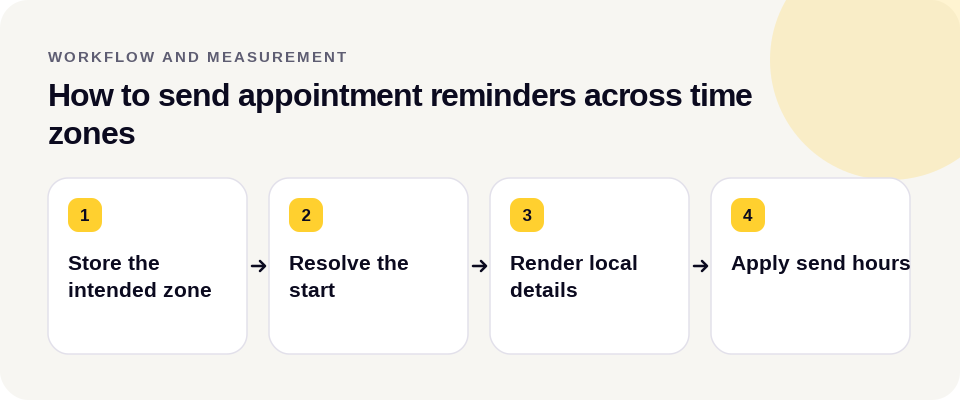
When two people join an appointment from different time zones, the reminder must describe a shared instant in terms each person can actually use. For a physical visit, use the venue’s local date and time as the anchor. For an online appointment, show a verified customer time when the booking supports it and label the business time if useful. Store named time zones and know whether repeating events are meant to keep the same local clock time or the same global instant.
Choose the authoritative time for each booking
An in-person appointment is anchored to the location. A traveling customer books 10:00 AM at a venue in Chicago; their visit is at 10:00 AM there even if the phone shows another time during travel. Write “10:00 AM Chicago time” in the message or include a venue-specific label customers understand. Avoid assuming area code, phone region or the business billing address reveals a customer’s current location. If the customer wants a second time shown, ask them to select the timezone.
A remote appointment may have a different anchor. If a studio hosts an online lesson every Tuesday at 3:00 PM in London, the studio may expect every occurrence to stay there on its own calendar. A client elsewhere can see a change relative to their local clock when the two regions change seasons on different dates. For a one-time visit, store the resolved instant and the relevant named zones; for a recurring visit, also store the intended local scheduling rule. Verify the exact occurrence rather than extrapolating from last week's offset.
Use readable labels, not a three-letter guess
An abbreviation such as “CST” may be interpreted differently in different countries. Include a city or region alongside the local time when booking across borders. A date written “4/6” can mean different days depending on the reader, so spell out the month and include the weekday when relevant. If a converted time falls on the next calendar day, show both dates explicitly. A convenient “tomorrow” teaser is not enough when a customer might read the text after midnight or be in a different country.
For a worked example, a venue appointment at 4:00 PM in New York on January 12 corresponds to 9:00 PM in London on January 12 under the ordinary winter offsets. A later New York time can become the next date in London. Treat this as an example, not a conversion rule. Use the actual date and a timezone-aware library or calendar. City timezone rules can change; looking up one offset once and copying it into all future schedules produces fragile reminders.
Separate send time from appointment time
An appointment’s local date tells customers when to show up, but the recipient's local quiet period governs when it is reasonable to notify them. Those are two different calculations. An early alert can be calculated from the appointment instant and then adjusted into permitted recipient hours. If a planned alert hits a quiet period, choose the previous permissible window or suppress it, depending on your policy and useful lead time. Do not delay it until after the appointment to satisfy a quiet period.
Be precise about “24 hours before” versus “the day before at 5 PM.” The first means subtract an elapsed duration. The second means choose a time on the preceding local calendar date, which may land at a different interval. Either can be appropriate, but they are not interchangeable around clock changes. Use the customer's chosen time zone for quiet hours where available. For an unknown zone, avoid guessing based on contact number; choose a documented conservative business rule and allow the customer to give an explicit preference.
Plan for clock changes and ambiguous times
On a clock-forward day, some local times do not exist. On a clock-back day, a time can occur twice. Scheduling software should define whether to reject or explicitly resolve an ambiguous booking time, and a human should see what was chosen. Don't silently accept a requested time from an ambiguous period and rely on the reminder to straighten it out. If your appointment services do not operate then, keep a test anyway: background reminder schedules could still land inside the interval.
The IANA time zone database provides named location identifiers and evolving rules; iCalendar defines how local dates and recurrence can reference zones. Confirm your system’s data is current and test the specific zones you serve. A good boundary test uses two locations whose calendar date differs for the same appointment instant. Another test books a weekly series on both sides of a change and checks the next occurrences rather than synthesizing all reminders at the offset that applied when the series was created.
Use a small timezone launch matrix
| Scenario | What the customer should see |
|---|---|
| Flying into town for an in-person visit | Venue date, venue clock time, and destination city label. |
| Online session where converted date is different | Customer date and time explicitly, with business date and time only if helpful. |
| Customer changes timezone after booking | Booking instant stays intact unless actually rescheduled; rendering and future permitted send hours are recalculated. |
Include a real calendar-rendering check on an ordinary phone. Send a controlled reminder with your own test details, open the calendar link in a system set to a second timezone, and verify that tapping it shows the same scheduled instant. Ask one staff member to read aloud the date and time from each version without looking at your internal record. If staff disagree, simplify the wording before making the automated choice. Useful reminders remove a conversion task from the customer rather than giving them a cryptic time string and a second app to consult.
Give employees a simple format for correcting mistakes. If a client says the reminder time looks wrong, first confirm the scheduled instant and intended timezone from the booking record. Then provide the explicit local date and time in a new acknowledgment, mentioning whether the appointment itself moved or only its display was corrected. Suppress any queued alert based on the old representation if it would repeat the confusion. Recording both the human wording and the underlying appointment instance makes later incident reviews much easier.