Industry playbooks
Tutoring appointment reminders for students and parents
Plan clear online and in-person lesson reminders, time zones, recurring schedules, caregiver routing, and missed lessons.
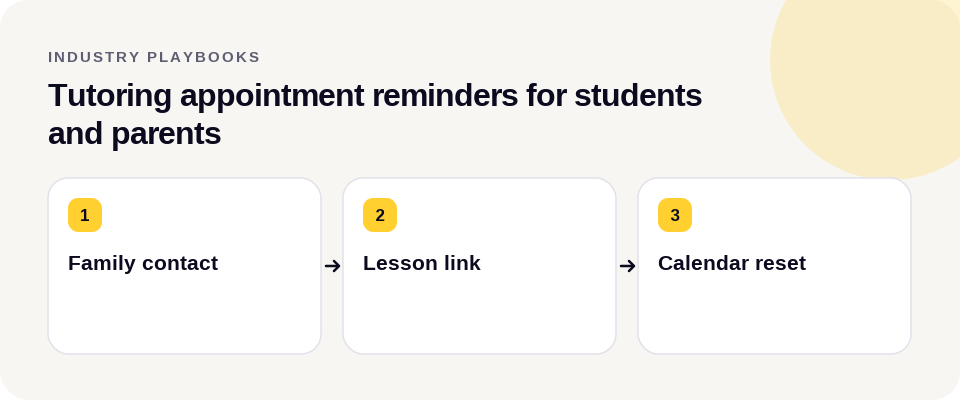
Decide who acts, not just who receives the reminder
The learner, payer, and scheduling contact can be three different people. Before adopting reminder software, clarify which contact receives each communication and which inbox can ask to move the lesson. For adult learners, the person booking usually handles the change. For a child’s lesson, follow your organization’s policy for caregiver communication; do not default to messaging children directly. Record recipient roles explicitly so an old student phone field is not reused as a guardian’s number. An occasional group notice may be suitable for adults, but it should not expose family contacts in an email addressed to every learner.
The person paying may need a billing update and not a reminder every week. Let the person who handles the schedule receive attendance prompts while keeping financial information in an appropriate channel. If two caregivers take turns managing the calendar, establish which one controls each session or who has permission to change the standing slot. A weekly change sent to a shared household number should not overwrite another learner’s lesson. Test a record for siblings with the same first initial, the same lesson day, and different tutors. Your reply routing should not depend on names alone.
Make the timing readable across time zones
A recurring online lesson can look perfectly stable in a tutor’s calendar and shift for the family when locations change clocks on different dates. Save the actual scheduling time zone and include the local time or zone in the reminder. Avoid abbreviations that customers may interpret differently across locations. If the family goes on vacation, verify whether the lesson should occur at the home time, the destination time, or not at all. Explain this once when confirming the change; don’t trust a generic app preview showing only “4:00.”
An in-person student may instead need directions for a campus, library, or unfamiliar room. Provide the exact entrance and room only to intended recipients. If a virtual meeting link changes, use the established booking portal or replacement confirmation, and invalidate the old link when possible. A reminder prompting people to open last week’s meeting room creates preventable delays. Check the experience on a small screen with a guest account. Some meeting links work for the tutor because that account is already signed in, while a family must request access.
Separate standing changes from a single skipped week
A parent who says “we’re away next Tuesday” is usually requesting a one-off change, not ending the recurring weekday series. Ask explicitly when a request is ambiguous. Give tutors the administrative options to amend a single occurrence, move all future lessons, or cancel with confirmation. Any replacement message should answer which other appointments remain in place. This protects families from repeated confusion and helps accounting if prepaid packages are involved. For billing or credit disputes, consult the organization’s policy and keep the scheduling reminder distinct from the actual settlement.
Publish a lightweight calendar for breaks and reconcile it with appointments rather than relying on last year’s schedule. Before a school holiday, check every recurring group for whether it meets and when the next confirmed class occurs. Staff should not send a normal reminder for a lesson that was removed from the shared calendar. If an outdated reminder escaped, follow with an explicit correction naming the affected date. Avoid asking people to search an old attachment to understand the actual meetup. Keep a record of who issued the correction so conflicting follow-ups do not appear later.
Make the pre-lesson request actionable and easy to decline
Some lessons benefit from an assignment reminder, but it should not obscure the appointment time or invite private attachments into a broad recipient list. Prefer a sentence such as “Bring the worksheet from last week” or “Open your usual portal and check the practice file” over a list of topics that looks like homework assigned by an automated system. The tutor or center should control the material. Before automating requests, define who answers if a family can’t find a file and whether materials are optional or necessary to participate.
Plan for the student who never makes it into a call. A tutor should know which number or contact method to use, when to send the first check-in, and how long the session room stays open. For a group, don’t interrupt everyone’s lesson to resend a link publicly. If an access issue is resolved, still log the time and cause to identify patterns. Link permission errors, calendar conflicts, and a forgotten lesson can all look like a no-show in weekly totals, but the practical fixes differ. Count them as separate codes before deciding whether more reminders would have helped.
Watch for fewer setup minutes and missed lessons
Measure lessons that start on time, repeat access problems, timely rescheduling requests, and classes accidentally marked as missed despite a known holiday change. Compare similar groups: online adult lessons and after-school children’s lessons have different practical constraints. For improvement, choose one current source of friction and adjust the relevant message. If learners consistently join without materials, clarify the pre-lesson note. If parents ask whether next week changed, make the scope visible in the confirmation. Do not add another notification simply because attendance took a temporary dip during exams or holiday travel.
Run a time-zone rehearsal
Create a practice series for a tutor in one time zone and a family in another. Move just the second session and open its instructions as a guest on a phone. Verify both sides agree on the next unchanged date. Use an account without access to the staff calendar and confirm it can reach the normal lesson entry point. Then simulate a missed session due to a link permission issue and make sure it is recorded differently from an unexplained absence. Ask each test participant to explain the next lesson time in their own words instead of replying with a generic confirmation.