Software buyer's guides
Calendar alerts vs appointment reminder software
Decide whether calendar notifications are sufficient or a separate reminder layer is worth connecting to your scheduling system.
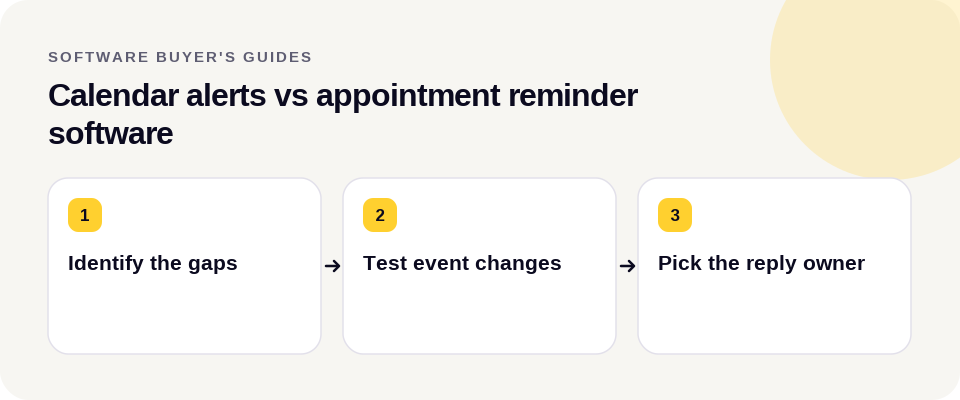
The deciding question
If all participants already use a shared calendar and routinely accept the invitation, native notifications may be enough. You might only need a calendar event with a useful title, an accurate location, and the right guest list. A separate reminder layer earns its place when your business needs a predictable customer-facing message, a particular channel, a record of the reply, or an exception queue for staff. The deciding question is not whether your calendar can notify anybody; it is whether it can reliably perform the reminder job your business depends on.
There is a difference between an event invitation, an update email, and a reminder before the start. Invitations establish the event and request a response. Updates tell guests that something changed. Reminders surface the upcoming commitment. Google Calendar describes notification preferences as something individuals can adjust, so do not promise that every external guest will receive your chosen reminder at the same lead time just because you configured your own.
When to keep the native workflow
Use calendar notifications for internal meetings, recurring sessions with stable attendees, and appointments that do not require a front desk to track incoming confirmations. A booking that includes all the details once, with the calendar doing the rest, minimizes data entry and reduces the number of systems that can disagree. Correct the event title, meeting link, and notes before you add new automation. A named coordinator in the event description may solve the problem by giving someone an obvious way to ask about a change.
Test how external recipients receive invitations when they do not use your calendar provider. Check a real mobile calendar and an external email address you control. Look at what appears before and after accepting an invite. If the result is usable and the business does not need a delivery or reply audit, you may not need to buy anything.
When a separate reminder layer can help
A separate layer may be appropriate when customers book externally, you want to send SMS, confirmations must update a work queue, or staff need to know about undelivered messages. It can use the scheduling source for event data and run its own rules for timing, brand, language, or late changes. It also brings a second system that can send something wrong if the feed is stale, so the benefits depend on the quality of the connection.
Example: A massage studio hears about cancellations only when staff open emails on a shared computer. A reminder layer might earn its keep if reschedule requests arrive in one monitored queue and staff can refill the opening. If the same software requires staff to enter a new date in both calendars by hand, it has exchanged one problem for another.
Ask what the word integration means
A downloaded calendar file can create an event without offering continuing updates. A subscribed feed can provide changes yet may refresh only at a client-dependent interval. An authenticated connection can potentially support reads, edits, or faster synchronization, but its exact access and update behavior are specific to the service. Ask about direction, latency, edit permissions, reconnect steps, and data actually visible to the reminder app. The fact that a product accepts an iCalendar URL does not demonstrate that it can send a change back to the booking system.
Ask how a recipient’s contact details enter the workflow and how they are corrected. For an appointment originally made by phone, the event may contain no guest email or phone number. Putting a phone number in an event title to patch a connector is not a good operating design, especially on shared calendars. A second system should have a clear and limited way to match the booking to the right contact.
Put recurring appointments and changes through their own tests
Create a recurring series of three fake bookings. Move one instance, cancel another, and leave the third untouched. Watch whether the reminder system keeps the same recipient, updates the changed instance, and leaves the unaffected one alone. Schedule the series across a time-zone change to see which time the recipient gets. Then remove the calendar connection, make an edit, and reconnect. Inspect whether old sends are replayed unexpectedly or a late update is missed.
For ordinary changes, compare the business clock to the reminder tool’s most recent view of the event. A change visible to a human in the calendar is not enough. Set a specific recovery process such as “if the last sync is older than twenty minutes on the morning schedule, pause automatic sends and use the booking source to contact affected people.” Pick that threshold based on actual lead times, not advice written for a different software stack.
Decide who is allowed to write back
One source should own the appointment start, duration, time zone, and cancellation status. A sender may own delivery details and notes about acknowledgments. Keep those responsibilities explicit. If both systems can write appointment changes, test the case where a customer requests a move while an employee edits the existing appointment. A useful system should prevent a stale event from overwriting newer information or at least show which edit needs attention.
Distinguish RSVP status from confirmation expected by the business. A calendar invite accepted two weeks ago may not answer a request to reconfirm tomorrow. If replies are required, document which status staff look at and what wording maps to it. Do not mark “no response” as canceled unless that is a defined policy the customer understands.
Make the smallest safe change
For low-risk bookings, start with calendar alerts and a better invitation. For operationally important bookings, test a reminder layer on one calendar and one visit type. Compare exceptions resolved, late changes missed, and duplicate reminders avoided. If contacts are left wondering whether the calendar invite, text, or email is authoritative, simplify the sequence. The right tool is the one that lets your team check a single trusted appointment time and know who needs help next.
When staff review a potential replacement, ask them to draw both workflows using arrows and name the screen they must check at each step. If they cannot identify where a change originates or where it becomes final, document that gap and correct it before connecting live bookings. A five-minute drawing can expose a day of future reconciliation.