Software buyer's guides
How to roll out appointment reminder software without duplicate sends
A practical implementation plan for replacing reminder workflows one team at a time, with a pause and recovery plan.
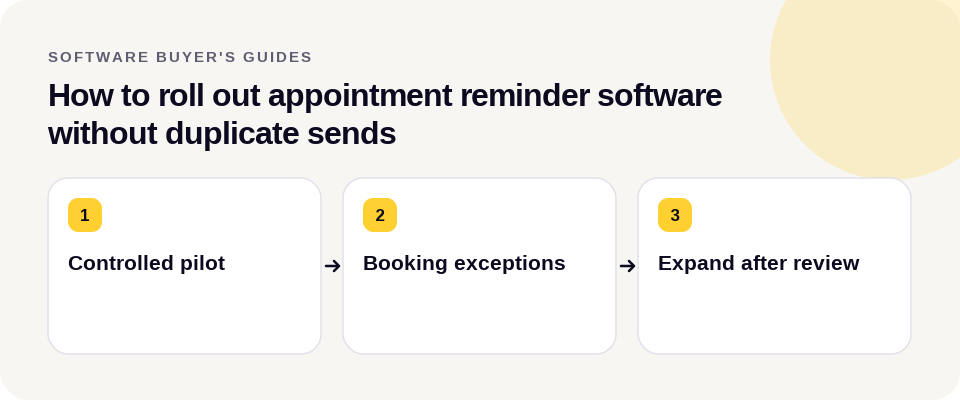
Start by drawing the current workflow
Before configuring a new sender, list where bookings are created, who moves them, and which systems already notify the customer. Include calendar invitations, old reminder tools, staff scripts, and shared inbox automations. Put the lead time, eligible appointment types, and owner next to each message. This inventory tells you which old send to pause when a new one is ready. Do not disable calendar invitations merely because some reminder wording overlaps; recipients may rely on the invitation to add an event to their schedules.
Pick a single source of appointment truth. The reminder layer can record delivery and replies, but permission to change the appointment should be explicit. Document which identifiers link a reminder to an appointment and whether a record can appear through more than one connection, such as a booking connector and a linked calendar. Duplicate connections need testing before any automated send uses them together.
Give the pilot a boundary
Choose one location or one appointment type with dependable contact data and a team member who can own the trial. Write down the eligible day, booking window, lead time, and default channel. Decide how to handle customers who prefer a different channel or who do not qualify for automated contact. Keep the previous operating path for bookings outside the boundary.
Before enabling the live rule, send through a restricted group of fictional bookings to numbers and inboxes your team controls. Try both SMS and email if both will be used. Stop early if the sender or content misidentify the business, the correct customer is not found, or a moved appointment schedules an old reminder. Keep a short checklist of what the team saw, not just a screenshot of a settings panel.
Configure templates and permissions together
The person writing the reminder should coordinate with the employee responsible for replies. If the template says “Reply C to confirm,” test the reply and confirm the decision appears in the appointment record or service queue where staff expect it. If a different time requires human approval, explain that the recipient is making a request. A message that claims an instant reschedule when the desk must approve it creates more work than the call it replaced.
Give staff the access needed to fix normal exceptions, but avoid giving every employee full administrative access. Test as a non-admin account because the rights a product owner has during setup can hide permissions problems. Record who can change templates, pause a workflow, clear an error, export history, or switch a customer’s preference. Establish a backup for each important responsibility before the main contact takes time off.
Make the cutover visible
For in-scope bookings, schedule the cutover and verify which system has pending sends shortly before turning the new rule on. An old job may remain queued when a rule is disabled, so do not rely on the label “inactive.” If the old tool cannot show pending jobs, use controlled test appointments and establish a quiet interval during the transition. Preserve outgoing confirmation messages generated by necessary booking actions unless you intentionally replace them.
Write down a boundary around original and changed bookings. For example, all eligible appointments created after a certain time use the new system, while appointments already in progress stay with the previous route until completed. That split can make tracking clear, but only if a moved legacy booking does not silently switch channels. Verify how edited and imported events are classified and check the first live queue before the first batch sends.
Check what happens during the first week
Review a small sample every day. Compare the event time and channel to the reminder received by test recipients or to approved operational logs. Look for missing instructions, repeated notifications, replies with no owner, and differences across locations. Count exceptions by category so urgent corrections do not get buried in totals. Avoid using a raw count of confirmations as a measure of adoption; staff may get many automated confirmations while still doing manual reconciliation in another system.
Compare appointment outcomes to a reasonable baseline, preserving customer preferences. What happened to late cancellations, non-attendance, and the number of slots staff were able to refill? How many minutes did staff spend receiving and clearing requests? One unusual day is not enough to infer a lasting outcome. A short pilot can reveal safety and workflow problems; a longer observation may be needed to judge the business results.
Decide when to pause and how to restart
Define triggers before the launch. Examples include duplicate reminders to one test customer, appointments shown in the wrong time zone, repeated notices after cancellation, or a queue with no supported routing. A pause should stop the affected outbound jobs without deleting the appointment source. Keep this action documented where staff can find it during a shift.
After fixing an issue, classify pending jobs as safe, obsolete, or requiring manual follow-up. Old reminders should not be blindly replayed. Check that an automatic retry will not send the same notice again. If a real customer is affected, follow your organization’s process to correct the appointment information and document the action. A recovery checklist should include a new test send and sign-off from the person operating the affected workflow.
Expand one boundary at a time
Add a second location or appointment type after the first group has predictable sends and replies, not because a promised launch date has passed. Review how the new group differs: languages, staffing hours, team permissions, rate of change, or channel preferences. Update the staff instructions and repeat the highest-risk test cases. Build a short handoff guide for a new starter. It should answer which screen controls the appointment, how to check delivery, where to see replies, and who can halt the system. A rollout is complete when the front desk can run it without the person who installed it.
Keep a record that a new manager can use
Record each expansion date, covered appointment type, approved template, responsible desk, and known exceptions. When something changes, note what prompted it and which tests you reran. Store this near your regular onboarding checklist instead of leaving it in a vendor chat. A later manager should be able to trace why two locations use different lead times without guessing which setting is wrong.